Use-By: Expiry Tracker
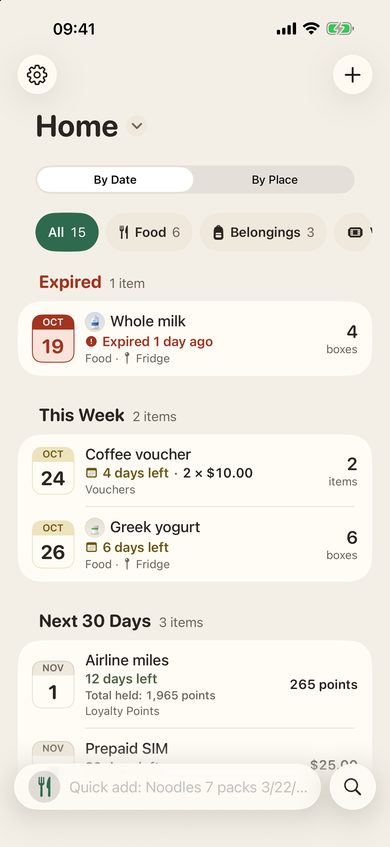
Keep track of everything at home with an expiry date, from food and medicine to vouchers, loyalty points and SIM plans, and get reminded before it's too late.
- Add items in seconds: type a line like
Noodles 7 packs 3/22/2027orGift card $50 12/20/2026and the app picks out the name, quantity, value and date, then suggests a category. - One list for everything: food, household, medicine, vouchers, loyalty points, SIM & plans, documents, cards, insurance, vehicles. Tap a category to see only those items.
- Things that don't expire, too: the “Belongings” category for raincoats, helmets, tools… Items with “No expiry” never trigger a reminder and sit together at the end of the list.
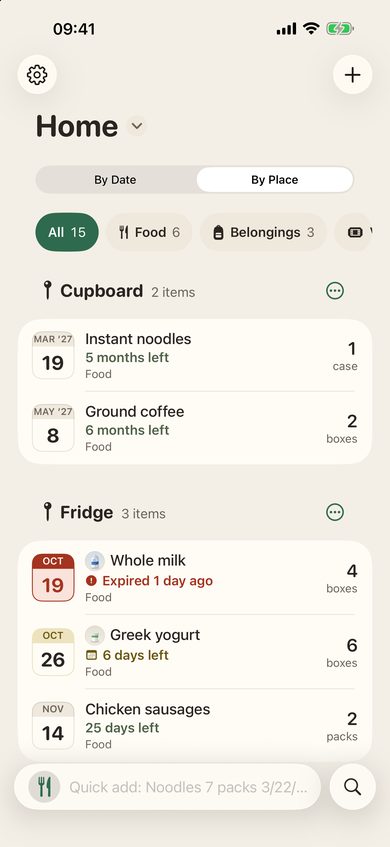
- Know where things are: type
Raincoat 3 pcs @garageto note a place, view your list “By Place”, search with@shelf. Add a photo to recognize an item at a glance. - Values too: a voucher's face value, a SIM balance, points about to expire. Points from several periods add up to a total.
- Reminders at the right time: food monthly from 12 months ahead and daily in the final week; every other category has its own schedule, such as documents from 6 months ahead. Plus a weekly digest.
- Share with your household via iCloud, with edit or view-only access for each person. Move items to another list or merge two lists into one.
- Free, no account needed: no ads, no tracking. Your data stays in your own iCloud, and category suggestions run on your iPhone.
Frequently asked questions
What’s the fastest way to add an item?
Type a line like Noodles 7 packs 3/22/2027 in the field at the bottom of the screen and tap +. For more detail, tap + in the top corner instead.
Not seeing notifications? Open the app’s Settings to turn on notifications and choose a reminder time. If notifications are off at the system level, open iPhone Settings → Notifications → Use-By.
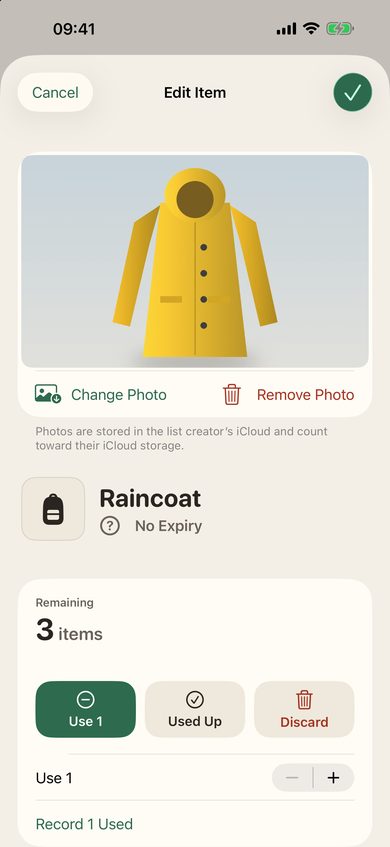
How do I use, discard, or edit an item? Swipe an item left or right, or long-press it to see every action: Edit, Use 1, Use up, Discard (including items that spoiled early), Delete.
I tapped “Use 1” or “Use up” by mistake? Tap “Undo” right after, or open the item → History → Undo.
Can I share the list with my household? Settings → “Invite household members” → send the link via Messages or WhatsApp. The invitee needs an iPhone signed in to iCloud. For each person you choose Can edit or View only. View-only members can’t change anything but still get reminders.
Can I have more than one list? Tap the list name at the top of the screen (“Home ⌄”) to switch lists or create a new one. Each list is shared separately with different people.
Can I filter the list by category? When a list holds items from two or more categories, a row of categories appears under the list name, with a count for each. Tap one to see only those items, or “All” to see everything again. As you type a name, the app suggests a category (“Is it …?”). The suggestion runs on your iPhone and the name isn’t sent anywhere.
How do I change the category of several items at once? Tap the list name at the top of the screen → “Select Items”, pick the items, then tap “Change Category…”. A category belongs to the item name, so items with the same name in that list change too.
How do I record a voucher’s value, a SIM balance or points?
For vouchers, loyalty points and SIM & plans, open the item and fill in “Value”, or type it when you add the item: Gift card $50 12/20/2026. If points expire in several batches, add each batch as an item with the same name; the app adds them up as “Total held”.
Can I move items to another list, or merge lists? Long-press an item → “Move to List…”. To move a whole list, tap the list name → “Merge into Another List…”; every item goes across with its quantity and history. The app never deletes the old list on its own; it asks you separately. Family members still on an older version keep using the shared list as before, and need the update to see categories and values.
How do I record things that don’t expire, like a raincoat or a helmet?
Choose the “Belongings” category: “No expiry” is already on, the item never triggers a reminder, and it sits in the last group of the list (tap the group to show it when it’s folded). In quick add, type Raincoat 3 pcs @garage; when the app asks “Is it Belongings?”, tap “Change”. If something has a warranty, turn “No expiry” off and enter the date the warranty ends. “No expiry” works in other categories too.
What is a place, and how do I use @?
A place records where an item is kept: fridge, pantry, garage… In quick add, type @ and the place after the item name: Noodles 7 packs 3/22/2027 @pantry. The app suggests places you’ve used and remembers the last place for an item with the same name. In the add form or an item’s details, fill in “Place”. Once items have places, choose “By Place” at the top of the list to see them grouped by place, or type @pantry in “Search items or @place” to see only what’s there.
Where are photos stored, and do they use iCloud storage? Each item can have one photo: in the add form or an item’s details, tap “Add Photo”, then take a photo or choose one from your library. Before saving, the photo is resized on your iPhone (usually 150 KB or less) and its location data is removed. Photos are stored in the iCloud of the person who created the list and count toward their iCloud storage; everyone sharing the list sees them. Photos may not be end-to-end encrypted like item names; see the Privacy Policy.
How do I rename or merge places? Go to Settings → “Places” to see every place with its item count. Tap “Rename” to fix a name (say “frige” to “Fridge”), or “Merge into…” to combine two places. In “By Place”, the header of each place offers the same choices. Renaming also changes the place for everyone sharing the list. When you type a place close to an existing one, the app asks “Did you mean “Fridge”?” so you don’t end up with duplicates.
Where is my data stored? On your iPhone and in your own iCloud account. See the Privacy Policy.
Guides to food dates and storage
- Best before vs use by vs sell by: how to read food date labels
- How long do opened pantry and fridge staples last?
- How to organize your fridge and pantry to waste less food
- Is it safe to eat food past its expiration date?
Contact
Email: support@minhtran.io.vn